
Prerequisites
- You are signed in to the extension.
- You selected the correct organization.
- Your browser allows screen or tab capture.
- You know which page or flow you want to test.
Recording Flow
- Open the popup and choose the Session or Video tab depending on the evidence you need.
- Choose source, audio, capture, and countdown options in the extension popup.
- Start recording and grant browser capture permission.
- Wait for the on-screen countdown to finish, then interact with the target application normally.
- Stop recording from the popup or browser capture controls.
- Review the session locally, then open the uploaded console session when ready.
Countdown
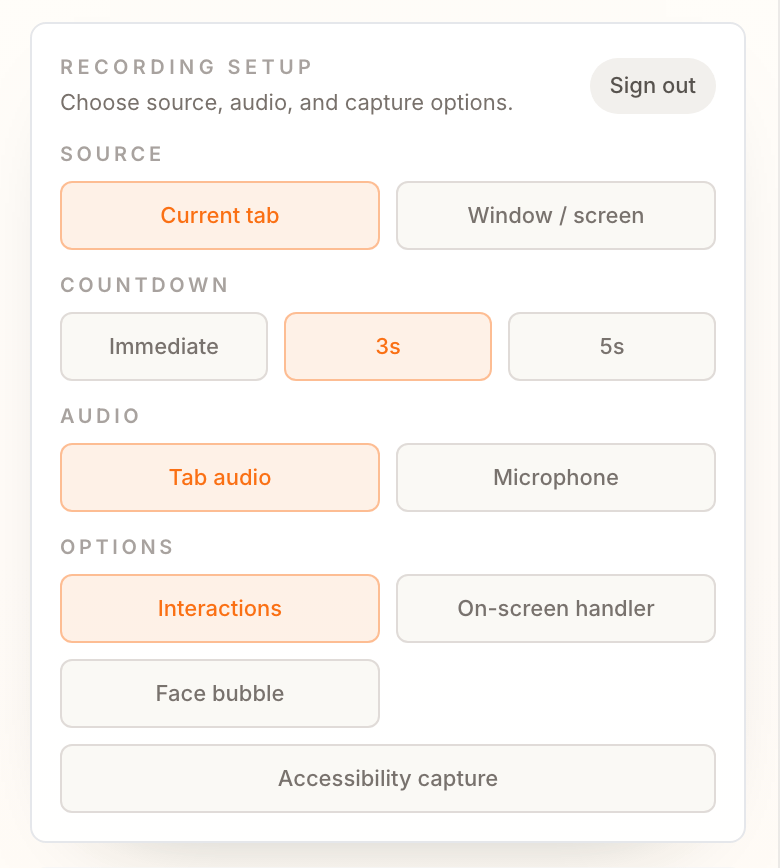
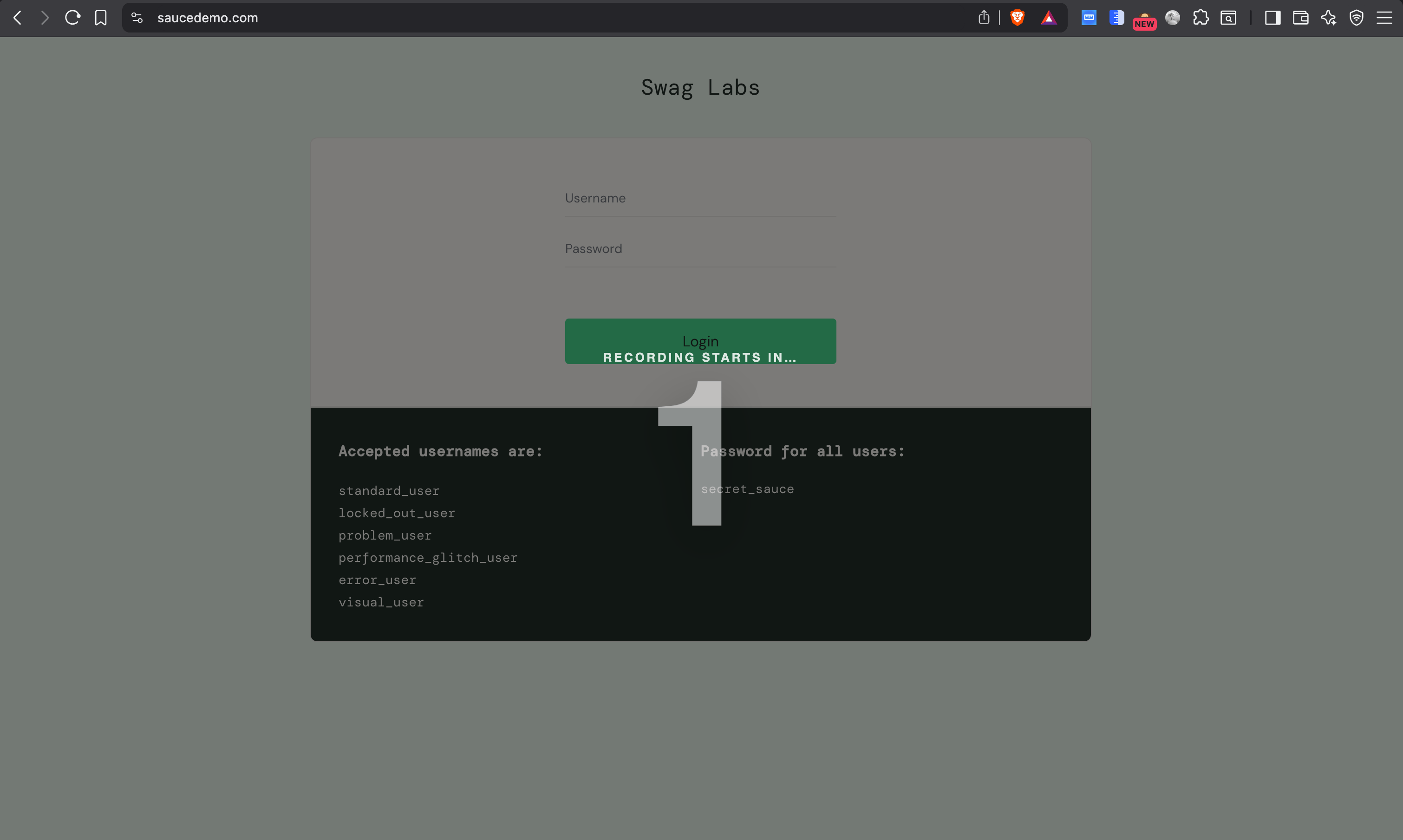
Choose how long Puggy waits before it starts capturing. This gives you a moment to close the popup, switch to the target tab, and get ready before recording begins. Set the countdown in the Countdown section of the recording setup:- Immediate — start capturing as soon as you grant permission, with no delay.
- 3s — count down three seconds before recording starts. This is the default.
- 5s — count down five seconds when you need more time to prepare.
Recommended capture options
- Enable Interactions when you want AI-generated test scripts or clearer reproduction steps.
- Enable Microphone only when narration is useful.
- Enable Tab audio when audio output is part of the issue.
- Use Window / screen capture for flows that move across tabs or windows.
- Use Current tab capture for focused browser-only testing.