

Show the dock
Enable On-screen handler in the extension popup before starting a capture. The dock appears on the active page and can be dragged to a different position. Use the drag handle on the left side of the dock to move it. Use the close button on the right side to hide it.Switch capture mode
The Mode control opens a menu with three capture options: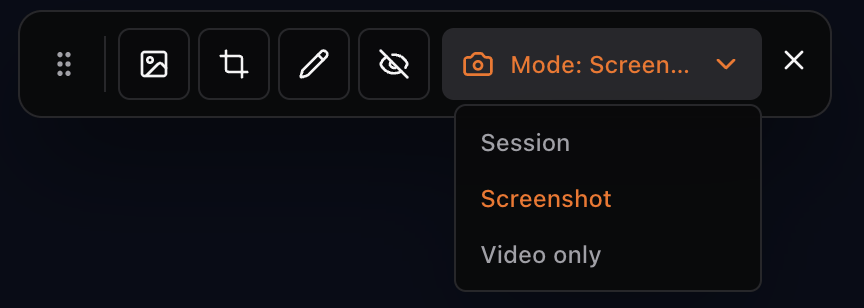
Changing mode from the dock updates the same capture preference used by the extension popup.
Recording controls
When the dock is in session or video-only mode, use the recording controls to:- Start recording.
- Stop recording.
- Pause or resume recording.
- Take a screenshot during the recording.
- Capture an accessibility report when the feature is enabled.
- Toggle tab audio and microphone capture.
Screenshot controls
When the dock is in screenshot mode, use the screenshot controls to:
- Capture the visible area.
- Select and capture a region.
- Annotate the page before capture.
- Blur page elements before capture.
Annotate the page
Use the annotation tool to draw directly on the page. The annotation toolbar includes:- Pen
- Marker
- Text
- Eraser
- Color selection
- Clear annotations
Blur sensitive content
Use the blur tool to hide sensitive page content before recording or taking a screenshot.- Click the blur button.
- Hover the page and click the element you want to blur.
- The selected element is blurred immediately.
- The blur selector turns off after the click.