> ## Documentation Index
> Fetch the complete documentation index at: https://docs.puggy.dev/llms.txt
> Use this file to discover all available pages before exploring further.
# Recording
> Record a browser session with the Puggy Chrome extension and review the captured evidence.
Puggy records sessions from either the current tab or a selected window/screen.
During a recording, the extension can collect video, screenshots, network logs (including live WebSocket messages), console logs, user interactions, performance metrics, and accessibility reports. After stopping, the session viewer opens with local data immediately while upload continues in the background.
## Prerequisites
* You are signed in to the extension.
* You selected the correct organization.
* Your browser allows screen or tab capture.
* You know which page or flow you want to test.
## Recording Flow
1. Open the popup and choose the **Session** or **Video** tab depending on the evidence you need.
2. Choose source, audio, capture, and countdown options in the extension popup.
3. Start recording and grant browser capture permission.
4. Wait for the on-screen countdown to finish, then interact with the target application normally.
5. Stop recording from the popup or browser capture controls.
6. Review the session locally, then open the uploaded console session when ready.
You can start and stop a session without opening the popup using [keyboard shortcuts](/extension/shortcuts).
 ## Countdown
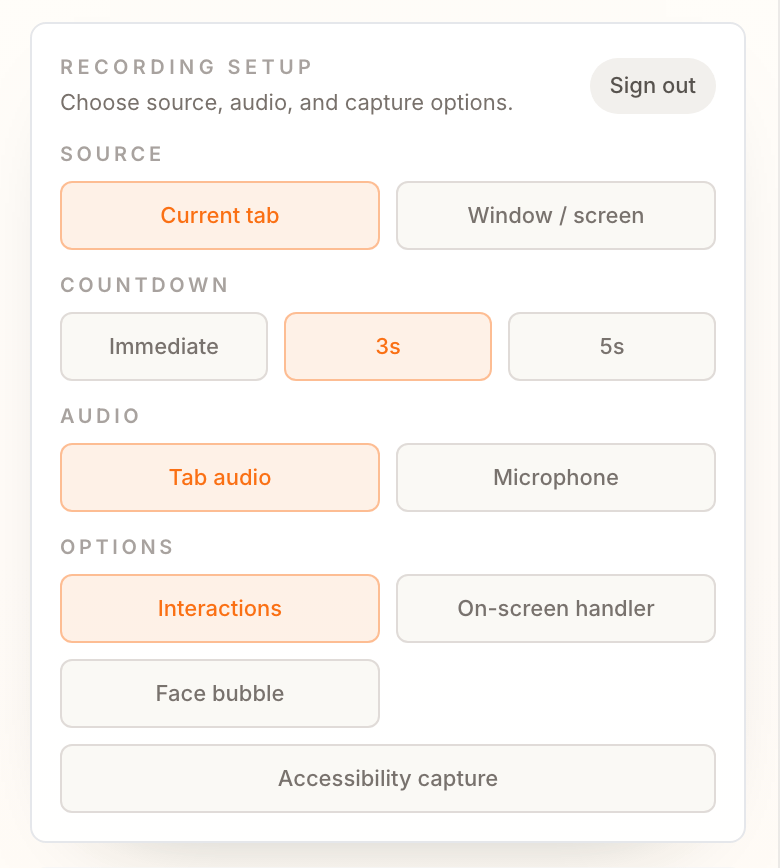
Choose how long Puggy waits before it starts capturing. This gives you a moment to close the popup, switch to the target tab, and get ready before recording begins.
Set the countdown in the **Countdown** section of the recording setup:
* **Immediate** — start capturing as soon as you grant permission, with no delay.
* **3s** — count down three seconds before recording starts. This is the default.
* **5s** — count down five seconds when you need more time to prepare.
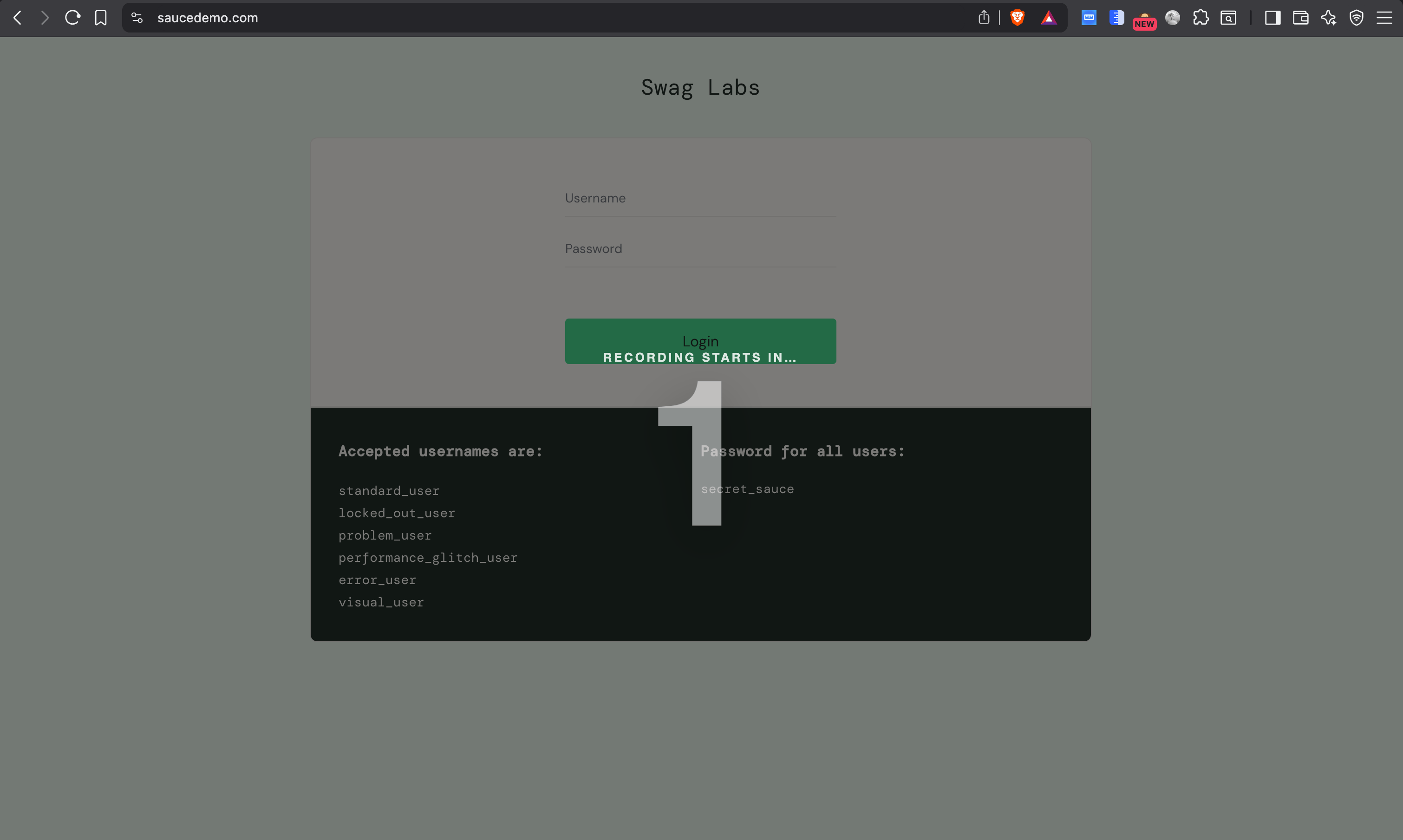
When a countdown is set, a full-screen number appears on the page with a **Recording starts in...** caption. Your clicks pass through the overlay, so you can keep interacting with the page while it counts down. Press **Esc** during the countdown to cancel and start over.
## Countdown
Choose how long Puggy waits before it starts capturing. This gives you a moment to close the popup, switch to the target tab, and get ready before recording begins.
Set the countdown in the **Countdown** section of the recording setup:
* **Immediate** — start capturing as soon as you grant permission, with no delay.
* **3s** — count down three seconds before recording starts. This is the default.
* **5s** — count down five seconds when you need more time to prepare.
When a countdown is set, a full-screen number appears on the page with a **Recording starts in...** caption. Your clicks pass through the overlay, so you can keep interacting with the page while it counts down. Press **Esc** during the countdown to cancel and start over.
 Your countdown choice is remembered for the next session.
## Recommended capture options
* Enable **Interactions** when you want AI-generated test scripts or clearer reproduction steps.
* Enable **Microphone** only when narration is useful.
* Enable **Tab audio** when audio output is part of the issue.
* Use **Window / screen** capture for flows that move across tabs or windows.
* Use **Current tab** capture for focused browser-only testing.
## Face bubble
Turn on **Face bubble** to show your webcam as a small floating bubble on the page while you record, so whoever reviews the session can see you walk through the issue. Enable it once in the [Settings screen](/extension/settings#advanced-capture) and it applies to every new recording until you turn it off.
## After recording
The local session viewer lets you confirm the evidence before the upload completes. Once upload succeeds, open the session in the console to review details, generate a report, or share it.
Your countdown choice is remembered for the next session.
## Recommended capture options
* Enable **Interactions** when you want AI-generated test scripts or clearer reproduction steps.
* Enable **Microphone** only when narration is useful.
* Enable **Tab audio** when audio output is part of the issue.
* Use **Window / screen** capture for flows that move across tabs or windows.
* Use **Current tab** capture for focused browser-only testing.
## Face bubble
Turn on **Face bubble** to show your webcam as a small floating bubble on the page while you record, so whoever reviews the session can see you walk through the issue. Enable it once in the [Settings screen](/extension/settings#advanced-capture) and it applies to every new recording until you turn it off.
## After recording
The local session viewer lets you confirm the evidence before the upload completes. Once upload succeeds, open the session in the console to review details, generate a report, or share it.